# Speech to text on Windows 11: voice typing, Voice access and local dictation
> How to use Win + H voice typing on Windows 11, what it sends to Microsoft, when Voice access fits better, and which Whisper apps keep dictation on your PC.
Published 2026-11-14 by Mythic Brain. Page: https://oceanbreeze.io/blog/speech-to-text-windows-11/
## Short answer
Click into any text field and press Win + H to start voice typing; it uses Microsoft's online speech recognition, so it needs the internet and your voice goes to Microsoft. Voice access recognizes speech on your PC after a one-time language download, and also lets you control apps by voice. For dictation that stays on your PC in any app and language, use a Whisper-based app such as Handy, Buzz or OceanBreeze.
## Key points
- Win + H starts voice typing. It needs the internet.
- Voice typing sends your voice to Microsoft; Voice access works on your PC.
- Microsoft says cloud recognition is more accurate than on-device.
- Whisper apps work offline. Bigger models are slower but more accurate.
- Microphone distance matters more than price.
## Voice typing step by step
1. Put the cursor where you want to write: a mail, a document, a chat or a browser field.
2. Press Win + H. On a touchscreen, the microphone button on the touch keyboard does the same.
3. Wait for "Listening...", then speak at a normal pace.
4. Say punctuation when you need it: "comma", "period", "question mark", "new line" or "new paragraph". Or select the gear icon in the voice typing box and turn on **Automatic punctuation**, so Windows adds punctuation from how you speak.
5. Say "stop listening", or select the microphone button, to stop.
The gear menu also has **Voice typing launcher**, which puts a microphone button next to text boxes, plus **Filter profanity**, **Default microphone** and **Wait time before acting**.
## What goes to Microsoft
Microsoft says voice typing "uses online speech recognition, which is powered by Azure Speech services". Its privacy page says voice data is sent to Microsoft to provide the service and create transcriptions, and its privacy statement says cloud-based recognition is more accurate than device-based recognition.
The switch is **Online speech recognition** in **Settings > Privacy & security > Speech**. Turn it off and Windows uses only device-based recognition and sends no voice data to Microsoft, but then only device-based features keep working. Microsoft names captions, Narrator and Voice access as examples; voice typing is not among them.
Sending voice clips to improve the service is a separate, optional choice in voice typing's settings. Work and school accounts can't share voice data.
## Voice typing languages
Several dozen languages and regional variants work, including English (US, UK, Canada, Australia, India and New Zealand), French, German, Italian, Spanish (Spain and Mexico), Portuguese (Brazil and Portugal), Japanese, Korean, Chinese, Hindi, Russian, Turkish, Thai and many European languages from Bulgarian to Swedish. Microsoft's voice typing page has the full list.
## Voice access
Voice access runs the whole PC by voice. Microsoft says you can open and switch between apps, browse the web, and read and write email with it. It's in Windows 11 version 22H2 and later.
Turn it on in **Settings > Accessibility > Speech**, or search for "voice access". On first launch it downloads language files for on-device recognition, the only time it needs the internet. Default mode switches between commands and dictation, Commands only listens for commands, and Dictation only types.
It knows fewer languages than voice typing: English, Spanish, French, German, Italian, Chinese and Japanese, some in several regional variants. Microsoft notes that its fluid dictation is English-only and needs a Copilot+ PC.
| | Voice typing | Voice access | Whisper-based apps |
| --- | --- | --- | --- |
| How to start | Win + H | Settings > Accessibility > Speech | The app's own shortcut |
| Where speech is recognized | Microsoft's cloud | Your PC | Your PC |
| Needs the internet | Always | Only for the first language download | Only to download a model |
| Controls apps by voice | No | Yes | Depends on the app |
| Languages | Several dozen | Seven | Many; quality varies by language |
| Price | Included in Windows | Included in Windows | Varies; Handy and Buzz are open source |
## How do you dictate offline on Windows 11?
Use Voice access, or install an app that runs a speech model on your PC. Most of these use Whisper, OpenAI's general-purpose speech recognition model, whose code and model weights are released under the MIT License.
- Handy is a free, open-source dictation app for Windows, macOS and Linux. Hold a shortcut to record and let go to stop, or tap to toggle, and it pastes the text into the app you're using. It runs entirely on your PC with Whisper or Parakeet models.
- Buzz transcribes and translates audio offline, from audio and video files, YouTube links or live microphone input, and exports TXT, SRT and VTT. It suits recordings and meetings more than typing into apps.
- OceanBreeze puts dictation and voice commands in a ring that opens around your pointer (more below).
### Whisper model sizes
Whisper's documentation describes its sizes as "speed and accuracy tradeoffs". Bigger models are slower and need more memory.
| Model | Parameters | Speed compared with large |
| --- | --- | --- |
| tiny | 39M | About 10x |
| base | 74M | About 7x |
| small | 244M | About 4x |
| medium | 769M | About 2x |
| turbo | 809M | About 8x |
| large | 1550M | 1x |
For English, the English-only tiny and base models do better than their multilingual versions. The documentation also says performance "varies widely depending on the language", so try your own language before you commit to a size.
## Dictation in OceanBreeze
Hold Caps Lock and keep the pointer still. After a moment the center of the ring shows a waveform, which means it's listening. Talk, then let go. Moving the pointer before you let go cancels.
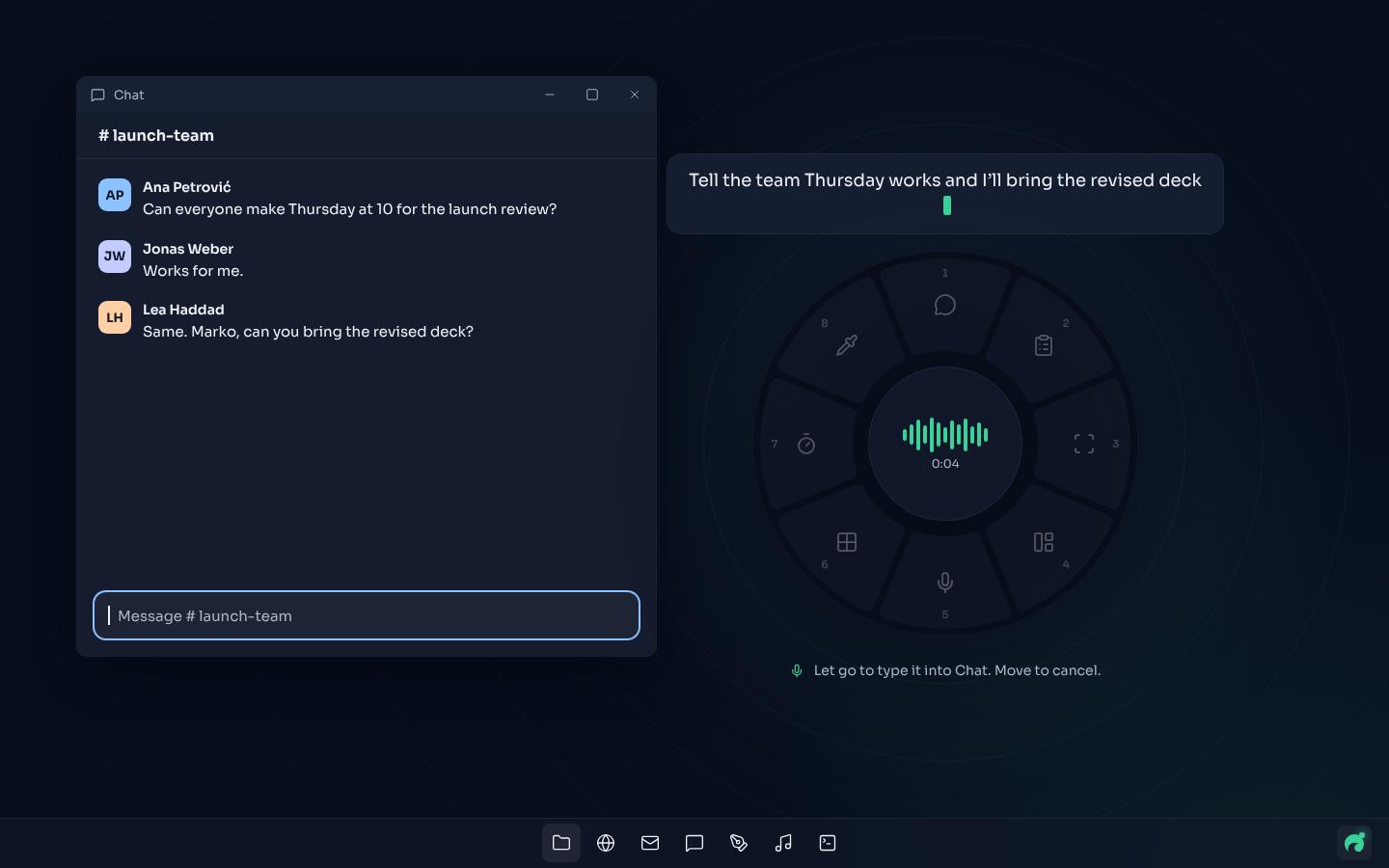
Speech is turned into text on your PC with a Whisper model that downloads on first use (148 MB for the default size, base). Audio is never sent anywhere or kept. Plain speech is typed into the text field you're in, with filler words removed and punctuation added. A request runs as a command instead, for example "Start a 25-minute focus timer" or "Put Figma on the left and Chrome on the right".
The clean-up can use the AI model you pick for dictation clean-up in Settings > AI models. With a model on your PC (Foundry Local or Ollama), nothing leaves it. With a cloud model and your own key, the text of what you said goes to that provider, never the audio. [How to run AI locally on Windows 11](https://oceanbreeze.io/blog/run-ai-locally-windows-11/) covers the free local options.
*Figure: Ring 1 with Dictate highlighted in slot 5. Holding still with no tool highlighted also starts listening.*
Because the trigger is Caps Lock, OceanBreeze changes how that key works; [remapping Caps Lock on Windows 11](https://oceanbreeze.io/blog/remap-caps-lock-windows-11/) explains the trade-off.
## What microphone do you need for speech to text?
Any microphone Windows recognizes works, but distance matters more than price. A headset or a microphone close to your mouth picks up less room noise than a laptop's built-in one across the desk. Test it before you blame the software:
1. Open **Settings > System > Sound**.
2. Under **Input**, select your microphone and choose the arrow to open its properties.
3. Under **Input settings**, select **Start test** and speak normally.
4. Select **Stop test**, choose **Play** to hear the sample, and adjust **Input volume** if needed.
OceanBreeze is $1.99 once on itch.io, for Windows 11: https://mythicbrain.itch.io/oceanbreeze
For more than dictation from a ring under your pointer, read [what a radial menu is](https://oceanbreeze.io/blog/what-is-a-radial-menu/) or see how [AI actions on selected text](https://oceanbreeze.io/blog/ai-on-selected-text-windows/) work.
## Common questions
### How do I add punctuation with voice typing?
Say it: "comma", "period", "question mark", "new line" or "new paragraph". Or select the gear icon in the voice typing box and turn on Automatic punctuation, so Windows adds punctuation from how you speak.
### Can Voice access type text as well as control apps?
Yes. Voice access has a Default mode that switches between commands and dictation, a Commands mode and a Dictation mode. It supports fewer languages than voice typing.
### Which Whisper model size should I use?
Start with base or small on an ordinary laptop. Whisper's own documentation describes the sizes as speed and accuracy trade-offs, and notes that the English-only tiny and base models do better than their multilingual versions for English.
### Is Whisper free?
Yes. Whisper's code and model weights are released under the MIT License. Apps built on it vary in price; Handy and Buzz are open source.
### How do I test my microphone on Windows 11?
Open Settings > System > Sound, select your microphone under Input, choose Start test and speak normally. Then choose Stop test, play the sample back and adjust Input volume if needed.
## Sources
- [Use voice typing to talk instead of type on your PC (Microsoft Support)](https://support.microsoft.com/en-us/windows/use-voice-typing-to-talk-instead-of-type-on-your-pc-fec94565-c4bd-329d-e59a-af033fa5689f)
- [Speech, voice activation, inking, typing, and privacy (Microsoft Support)](https://support.microsoft.com/en-us/windows/privacy/speech-voice-activation-inking-typing-and-privacy)
- [Microsoft Privacy Statement](https://www.microsoft.com/en-us/privacy/privacystatement)
- [Set up voice access (Microsoft Support)](https://support.microsoft.com/en-us/accessibility/windows/voice-access/set-up-voice-access)
- [Get started with voice access (Microsoft Support)](https://support.microsoft.com/en-us/topic/get-started-with-voice-access-bd2aa2dc-46c2-486c-93ae-3d75f7d053a4)
- [How to set up and test microphones in Windows (Microsoft Support)](https://support.microsoft.com/en-us/windows/hardware/drivers/how-to-set-up-and-test-microphones-in-windows)
- [openai/whisper (GitHub)](https://github.com/openai/whisper)
- [cjpais/Handy (GitHub)](https://github.com/cjpais/Handy)
- [chidiwilliams/buzz (GitHub)](https://github.com/chidiwilliams/buzz)