# Window snapping on Windows 11: every shortcut, Snap Layouts and FancyZones
> Every Windows 11 snap shortcut in one table, how Snap Layouts and snap groups work, where to change snap settings, and when FancyZones is worth adding.
Published 2026-11-14 by Mythic Brain. Page: https://oceanbreeze.io/blog/snap-windows-keyboard-shortcuts/
## Short answer
Press Win + Left or Win + Right to snap the active window to half the screen, Win + Up to maximize it, and Win + Z to open Snap Layouts, with more layouts to pick from. Win + Shift + Left or Right moves the window to the next monitor. For layouts Windows doesn't offer, PowerToys FancyZones lets you draw your own zones and snap windows into them by holding Shift while you drag.
## Key points
- Win + arrow keys snap, maximize and minimize the active window.
- Win + Z, or hovering the maximize button, opens Snap Layouts.
- Snap groups bring snapped windows back together from the taskbar.
- Snap settings are in Settings > System > Multitasking > Snap windows.
- FancyZones adds custom zones. Win + Shift + ` opens its editor.
## Every snap shortcut
Microsoft documents these shortcuts for snapping and moving windows. Once you know them, they're the fastest way to arrange windows.
| Shortcut | What it does |
| --- | --- |
| Win + Left | Snap the window to the left side of the screen |
| Win + Right | Snap the window to the right side of the screen |
| Win + Up | Maximize the active window |
| Win + Down | Minimize the active window |
| Win + Shift + Up | Stretch the window to the top and bottom of the screen |
| Win + Shift + Down | Restore a snapped or maximized window |
| Win + Shift + Left | Move the active window to the monitor on the left |
| Win + Shift + Right | Move the active window to the monitor on the right |
| Win + Z | Open Snap Layouts |
| Win + Home | Minimize or restore all windows except the active one |
| Win + D | Show and hide the desktop |
| Win + M | Minimize all windows |
| Win + Tab | Open Task View |
| Alt + Tab | Switch between open windows |
After you snap one window to a side, Snap Assist shows thumbnails of your other windows so you can pick what fills the rest of the screen.
## Snap Layouts
To put more than two windows side by side, which the arrow keys can't do, press Win + Z or hover over a window's maximize button, then choose a zone in one of the layouts. The window moves there, and Snap Assist opens so you can fill the other zones.
You can also drag a window toward the top of the screen to open the Snap bar and drop it on a zone, or drag it to a corner of the screen to snap it there.
## Snap groups
Windows remembers the windows you snapped together as a group, so you can get the whole arrangement back after switching away. Hover over the taskbar icon of any app in the group and choose the group or just that app. If that setting is on, groups also show up in Task View and when you press Alt + Tab.
## Snap settings
**Settings > System > Multitasking > Snap windows** has a main switch that turns Snap on or off. Expand it to change single behaviors:
- When I snap a window, show what I can snap next to it
- Show snap layouts when I hover over a window's maximize button
- Show snap layouts when I drag a window to the top of my screen
- Show my snapped windows when I hover over the taskbar apps, in Task View, and when I press Alt + Tab
- When I drag a window, let me snap it without dragging all the way to the screen edge
If Snap Assist's thumbnails get in your way, clear the first option. If the layout flyout pops up when you only meant to maximize, clear the second.
## FancyZones
Part of Microsoft PowerToys, FancyZones lets you draw your own zones and snap windows into them. It fits when the built-in layouts don't match how you work, for example on an ultrawide monitor where you want a narrow column for chat and two wide ones for work.
Hold Shift while you drag a window and the zones appear. Drop the window on one to snap it there, or hold Ctrl as well to stretch it across several zones.
| FancyZones shortcut | What it does |
| --- | --- |
| Win + Shift + ` | Open the layout editor |
| Win + PgUp / PgDn | Cycle between windows snapped to the same zone |
| Win + Ctrl + Alt + number | Apply a custom layout you gave that number |
| Win + arrow keys | Move between zones, only with Override Windows Snap turned on |
The editor has two kinds of custom layout. Grid starts with three columns that you split and merge, and it resizes with the screen. Canvas starts with one zone and lets you add zones that can overlap, like windows.
In FancyZones' settings, **Override Windows Snap** makes Win + arrow keys move windows between your zones instead of Windows' halves. **Show zones on all monitors while dragging a window** helps on multi-monitor setups, and **Allow zones to span across monitors** treats all screens as one, as long as every monitor has the same display scaling. **Move newly created windows to the last known zone** puts apps back where they were when you open them again.
To snap apps that run as administrator, such as Task Manager, PowerToys itself has to run as administrator.
## How do you move a window to another monitor?
Press Win + Shift + Left or Right and the active window moves to the monitor on that side. FancyZones doesn't take over these keys, so this works the same with it running. With the mouse, drag the window across and snap it on the new screen as usual.
## Snapping from the pointer
Keyboard shortcuts work on the window that has focus, and Snap Layouts needs you to aim at a small zone. If your hand is already on the mouse, a tool that opens around the pointer can be quicker.
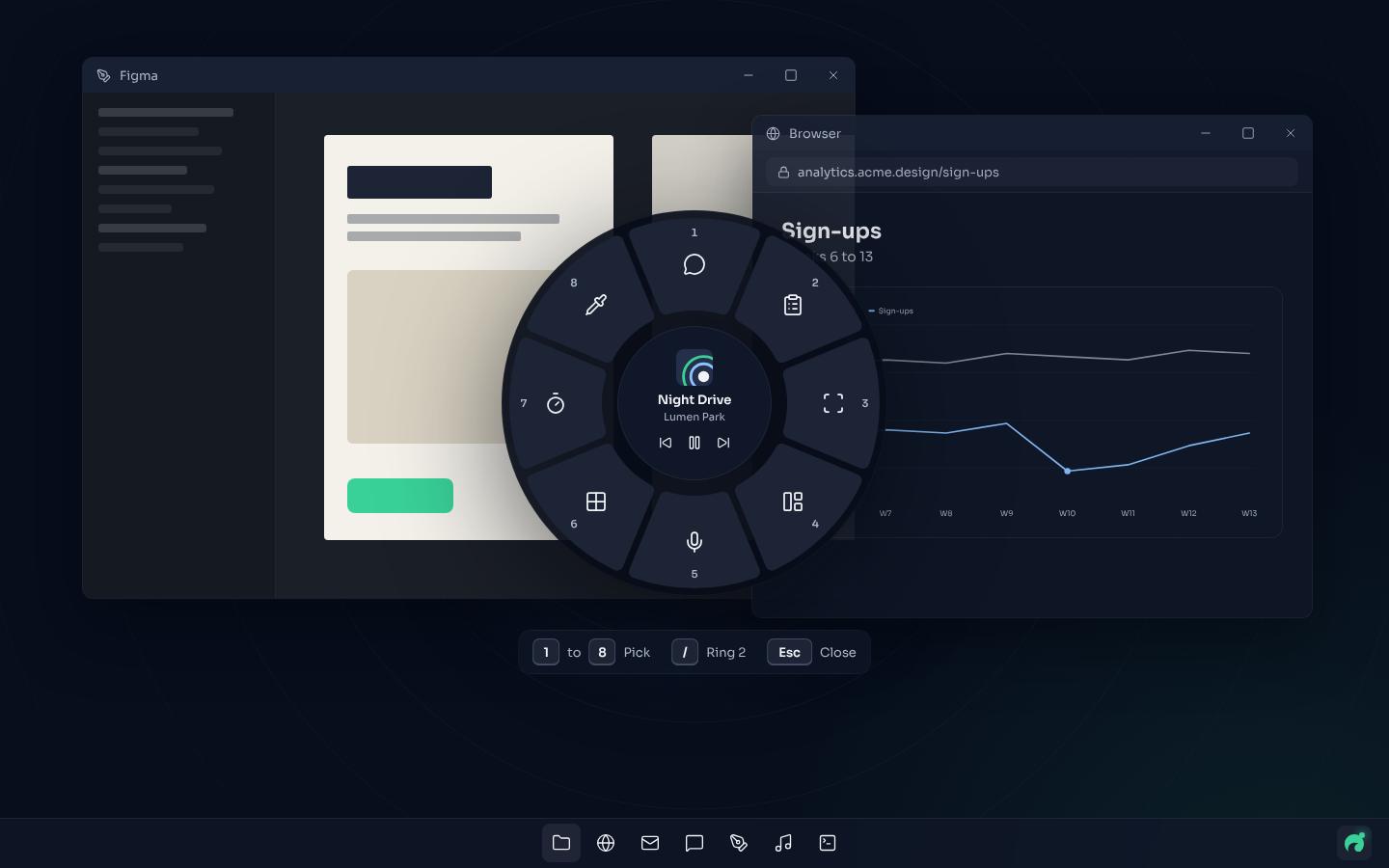
OceanBreeze's Snap tool is one of these. Hold Caps Lock, flick toward Snap in Ring 1 and let go, and the front window snaps to a half. Push past Snap, beyond the ring's edge, to choose from six layouts on an arc: left half, right half, left third, center third, right third and maximize.
*Figure: Ring 1 with Snap highlighted and its six layouts on the arc outside the ring: halves, thirds and maximize.*
You can also say it. Hold Caps Lock without moving, say "Put Figma on the left and Chrome on the right", and let go: OceanBreeze snaps both windows. Your speech is turned into text on your PC, and the audio is never sent or kept. [Speech to text on Windows 11](https://oceanbreeze.io/blog/speech-to-text-windows-11/) explains how its dictation works.
It doesn't replace FancyZones' custom grids or Windows' snap groups; it's a faster way to reach the common layouts with the mouse.
OceanBreeze is $1.99 once on itch.io, for Windows 11: https://mythicbrain.itch.io/oceanbreeze
For more on menus that open around the pointer, read [what a radial menu is](https://oceanbreeze.io/blog/what-is-a-radial-menu/) and [the best radial menu apps for Windows 11](https://oceanbreeze.io/blog/best-radial-menu-apps-windows-11/). To launch apps the same way, see [app launchers for Windows 11](https://oceanbreeze.io/blog/app-launchers-windows-11/).
## Common questions
### How do I turn off Snap in Windows 11?
Open Settings > System > Multitasking and turn off Snap windows. Expand the section instead to turn off single behaviors, such as the layouts that appear when you hover the maximize button.
### Does FancyZones replace Windows Snap?
Not by default. It adds its own zones that you use by holding Shift while dragging. If you turn on Override Windows Snap in its settings, Win + arrow keys move windows between your FancyZones zones instead.
### Can FancyZones zones span several monitors?
Yes. Turn on Allow zones to span across monitors in FancyZones' settings and it treats all screens as one. Every monitor needs the same display scaling.
### Why won't FancyZones snap Task Manager?
Task Manager runs as administrator. To snap apps that run as administrator, PowerToys itself has to run as administrator.
## Sources
- [Keyboard shortcuts in Windows (Microsoft Support)](https://support.microsoft.com/en-us/windows/keyboard-shortcuts-in-windows-dcc61a57-8ff0-cffe-9796-cb9706c75eec)
- [Snap your windows (Microsoft Support)](https://support.microsoft.com/en-us/windows/snap-your-windows-885a9b1e-a983-a3b1-16cd-c531795e6241)
- [FancyZones Window Manager for Windows (Microsoft Learn)](https://learn.microsoft.com/en-us/windows/powertoys/fancyzones)