# How to remap Caps Lock on Windows 11
> Four ways to remap Caps Lock on Windows 11: PowerToys Keyboard Manager, the Scancode Map registry value, SharpKeys and AutoHotkey, plus what to map it to.
Published 2026-11-14 by Mythic Brain. Page: https://oceanbreeze.io/blog/remap-caps-lock-windows-11/
## Short answer
The easiest way to remap Caps Lock on Windows 11 is Microsoft PowerToys: open Keyboard Manager, choose Remap a key, set Caps Lock in Select and the new key in To send, then choose OK. For a remap that needs no app running, use the Scancode Map registry value or SharpKeys, which writes it for you and needs a sign-out or restart. For tap and hold behavior, such as a hyper key, use AutoHotkey.
## Key points
- PowerToys Keyboard Manager remaps Caps Lock in a minute, but PowerToys has to keep running.
- Scancode Map is built into Windows, covers all users and keyboards, and needs a restart.
- SharpKeys writes Scancode Map for you, so you don't edit binary registry data by hand.
- AutoHotkey can keep Shift + Caps Lock for capitals or make a hyper key.
- Common targets: Ctrl, Esc, a launcher or radial menu, a hyper key.
## Four methods compared
| Method | Cost | Has to keep running | When it takes effect | Best for |
| --- | --- | --- | --- | --- |
| PowerToys Keyboard Manager | Free, open source (MIT) | Yes | Right away | Most people: one key to another key, shortcut or text |
| Scancode Map (registry) | Built into Windows | No | After a restart | A permanent key swap for every user, with no extra software |
| SharpKeys | Free, open source (MS-PL) | No | After you sign out or restart | The registry method with a simple window instead of hex |
| AutoHotkey | Free, open source (GPLv2) | Yes, the script | When the script starts | Custom behavior, hyper keys, keeping Shift + Caps Lock |
## PowerToys Keyboard Manager
The steps, as Microsoft documents them:
1. Install PowerToys from the Microsoft Store or GitHub, or run `winget install --id Microsoft.PowerToys --source winget` in PowerShell. It needs Windows 11 or Windows 10 version 2004 or later, on x64 or ARM64.
2. Open PowerToys Settings, select Keyboard Manager and make sure it's turned on.
3. Choose Remap a key, then Add key remapping.
4. In the Select column, pick Caps Lock: select the button and press Caps Lock, or search for it in the drop-down list.
5. In the To send column, pick the new key. It can be another key, a shortcut or text.
6. Choose OK. The remap works immediately, with no restart.
PowerToys has to stay running: close it or turn off Keyboard Manager and Caps Lock goes back to normal, which is also the quickest way out if you map the wrong key. The remap doesn't work on the sign-in screen, and it doesn't reach windows running as administrator unless PowerToys also runs as administrator.
Avoid it in games. Microsoft says Keyboard Manager can lower frame rates and that some games read keys in ways it can't intercept. And if nothing is left that sends Caps Lock, PowerToys warns you; map some other key to Caps Lock to fix it.
## The registry (Scancode Map)
Add a binary value called Scancode Map under `HKEY_LOCAL_MACHINE\SYSTEM\CurrentControlSet\Control\Keyboard Layout`, then restart. This is Windows' own Scan Code Mapper, so nothing has to keep running. Microsoft's driver documentation gives this exact value to swap Caps Lock and the left Ctrl key:
```
00000000 00000000 03000000 3A001D00 1D003A00 00000000
```
Read left to right: two empty header fields, a count of three entries (two mappings plus the closing zero), Caps Lock to left Ctrl, left Ctrl to Caps Lock, and the closing zero. Scan code `3A` is Caps Lock and `1D` is left Ctrl.
The same page says you must restart after every change, and that the mapping applies to all users and all keyboards on the PC. To undo it, delete the Scancode Map value and restart. Editing the registry by hand is easy to get wrong, so back up the key first, or use SharpKeys.
## SharpKeys
SharpKeys is a small free app that manages the Scancode Map value through a normal window, so you don't have to type hex. Add a pair such as Caps Lock to Left Ctrl, write it to the registry, then sign out and back in or restart. Install it from its GitHub releases, the Microsoft Store, or with `winget install -e RandyRants.SharpKeys`. On Windows on Arm, use the ZIP download.
## AutoHotkey
AutoHotkey is a free scripting tool whose remapping syntax is `OriginKey::DestinationKey`. Its documentation gives this two-line script for Caps Lock as Ctrl, with Shift + Caps Lock kept for capitals:
```
+CapsLock::CapsLock
CapsLock::Ctrl
```
The Shift line has to come first, and the script has to keep running. Because a script can run separate actions when the key goes down and when it comes back up, AutoHotkey can do things the other methods can't. Its key list notes one catch: some input method editors, for example Japanese input on an English keyboard, can swallow Caps Lock before AutoHotkey sees it.
## What should you remap Caps Lock to?
Caps Lock sits on the home row, next to your little finger, which is prime space if you rarely type in all capitals. Give it something you press often:
- Ctrl, so Ctrl shortcuts are easier to reach. Microsoft's own registry example is exactly this swap.
- Esc, if you press it constantly to close dialogs or leave modes in an editor.
- A launcher or radial menu, so holding or tapping Caps Lock opens a menu of apps and tools. See [app launchers for Windows 11](https://oceanbreeze.io/blog/app-launchers-windows-11/) and [radial menu apps for Windows 11](https://oceanbreeze.io/blog/best-radial-menu-apps-windows-11/).
- A hyper key. Hyper is an old modifier from the Space-cadet keyboard. On Windows, people recreate it as Shift + Ctrl + Alt + Win pressed together, a chord meant to stay clear of the shortcuts your apps already use. The Office key sends the same chord, though, so with it W opens Word and X opens Excel. The HyperKey extension for PowerToys Command Palette makes Caps Lock act as this chord while held, and a quick tap within 300 ms still works as normal Caps Lock.
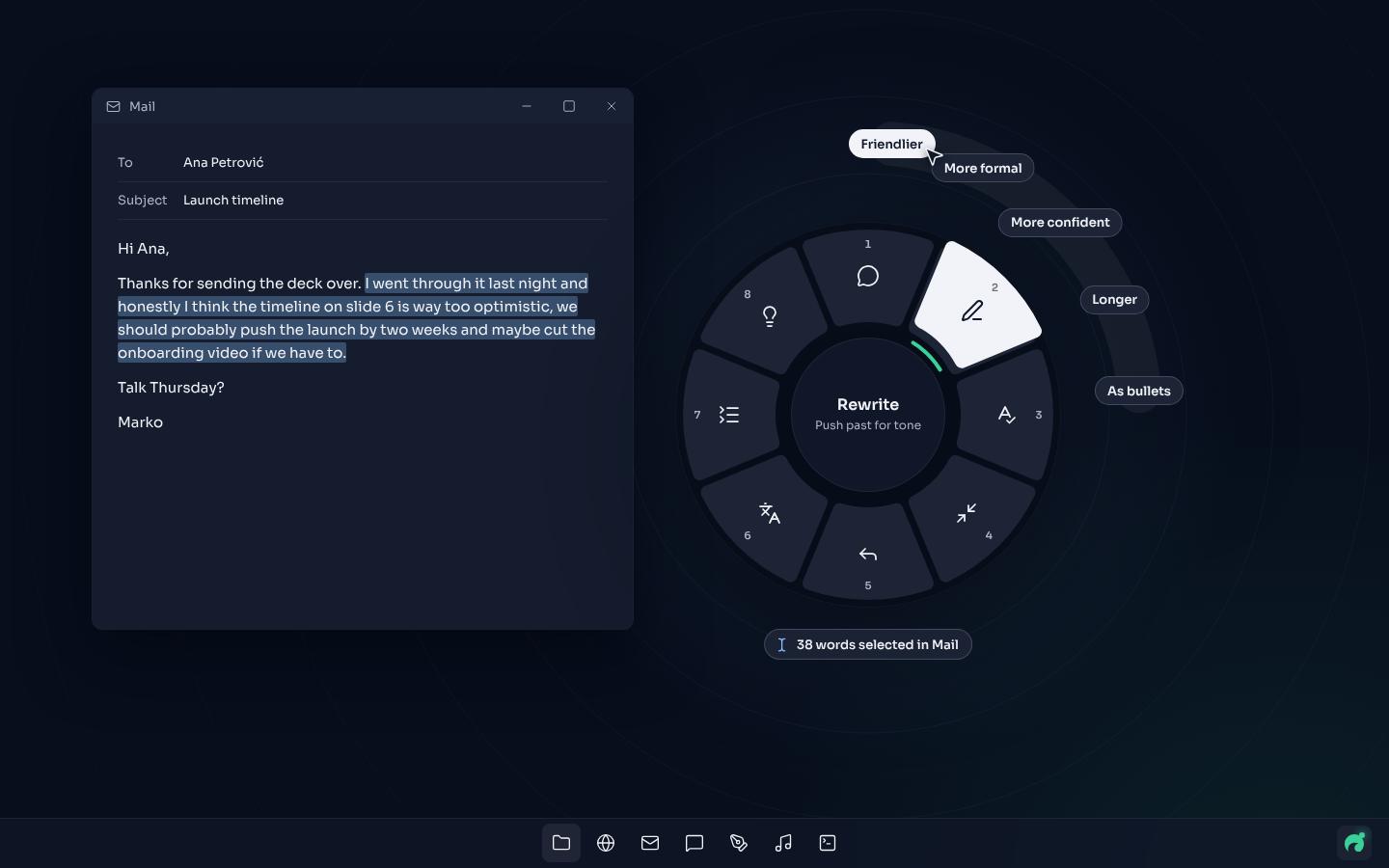
*Figure: Ring 1 in OceanBreeze, opened by holding Caps Lock: eight tools around the pointer, with Ask AI highlighted.*
## Caps Lock in OceanBreeze
OceanBreeze turns Caps Lock into a radial menu without you remapping anything. Hold Caps Lock and a ring of eight tools opens around your pointer; move toward one and let go. A tap keeps the ring open so you can click a tool or press 1 to 8.
You keep capitals: Shift + Caps Lock turns them on and off as before, and if Caps Lock is already on, a tap turns it off. If you need plain Caps Lock for a while, pause OceanBreeze from the tray menu, or pick a different trigger in Settings > Trigger, such as another key, a mouse button or a pen button. It costs $1.99 once and runs on Windows 11 only. If you just want Ctrl or Esc on that key, PowerToys is the simpler choice.
[What is a radial menu](https://oceanbreeze.io/blog/what-is-a-radial-menu/) explains why a ring under one key can be faster than a list. For more keyboard habits on Windows, see [snap windows with keyboard shortcuts](https://oceanbreeze.io/blog/snap-windows-keyboard-shortcuts/).
OceanBreeze is $1.99 once on itch.io, for Windows 11: https://mythicbrain.itch.io/oceanbreeze
## Common questions
### Can I remap Caps Lock on Windows 11 without installing anything?
Yes. Add a Scancode Map value under HKEY_LOCAL_MACHINE\SYSTEM\CurrentControlSet\Control\Keyboard Layout in the Registry Editor and restart. It applies to every user and every keyboard on the PC.
### How do I undo a Caps Lock remap?
In PowerToys, delete the row in Remap a key, or turn off Keyboard Manager. For a registry remap, delete the Scancode Map value and restart. SharpKeys can delete its mappings for you; then sign out or restart.
### How do I still type in capitals after remapping Caps Lock?
Hold Shift, or keep a way to toggle it. In AutoHotkey, put +CapsLock::CapsLock before your remap so Shift + Caps Lock still toggles capitals. PowerToys warns you when no key is left that sends Caps Lock, so you can map another key to it.
### Does a PowerToys remap work in games and admin apps?
Not reliably. Microsoft advises against using Keyboard Manager while gaming because it can affect performance, and remaps don't reach windows running as administrator unless PowerToys also runs as administrator. It also doesn't work on the sign-in screen.
### What is a hyper key on Windows?
One key that sends Shift + Ctrl + Alt + Win together, giving you an extra modifier for your own shortcuts. That chord is also what the Office key sends, so some letters with it open Microsoft 365 apps, such as Word with W.
## Sources
- [Remap keys and shortcuts with PowerToys Keyboard Manager (Microsoft Learn)](https://learn.microsoft.com/en-us/windows/powertoys/keyboard-manager)
- [How to install PowerToys (Microsoft Learn)](https://learn.microsoft.com/en-us/windows/powertoys/install)
- [PowerToys on GitHub](https://github.com/microsoft/PowerToys)
- [Configuration of keyboard and mouse class drivers: Scan code mapper (Microsoft Learn)](https://learn.microsoft.com/en-us/previous-versions/windows/hardware/hid/keyboard-and-mouse-class-drivers)
- [SharpKeys on GitHub](https://github.com/randyrants/sharpkeys)
- [AutoHotkey](https://www.autohotkey.com/)
- [AutoHotkey v2 docs: Remapping keys](https://www.autohotkey.com/docs/v2/misc/Remap.htm)
- [AutoHotkey v2 docs: List of keys](https://www.autohotkey.com/docs/v2/KeyList.htm)
- [Hyper key (Deskthority wiki)](https://deskthority.net/wiki/Hyper_key)
- [Hyper Key (Raycast manual)](https://manual.raycast.com/hyper-key)
- [HyperKey extension for PowerToys Command Palette](https://microsoft.github.io/CmdPal-Extensions/extensions/brunnobb.hyperkey/)
- [How to remap the Office key on your keyboard (How-To Geek)](https://www.howtogeek.com/445318/how-to-remap-the-office-key-on-your-keyboard/)