# App launchers for Windows 11: Start, PowerToys, Flow Launcher and a ring
> The fastest ways to open apps on Windows 11: Start search, Win + number, PowerToys Command Palette, Flow Launcher, Raycast and a pointer ring, compared.
Published 2026-11-14 by Mythic Brain. Page: https://oceanbreeze.io/blog/app-launchers-windows-11/
## Short answer
Windows 11 has three fast launchers built in: Win + S to search for an app by name, Win + a number for the app pinned in that taskbar position, and Win + R to run a command. For one box that also handles files, commands and calculations, install PowerToys Command Palette (Win + Alt + Space), the successor to PowerToys Run, or Flow Launcher (Alt + Space). If your hand is usually on the mouse, a pointer launcher such as OceanBreeze's Apps ring opens your eight most used apps with a flick.
## Key points
- Win + number opens or switches to the app in that taskbar position.
- Command Palette, PowerToys Run's successor, opens with Win + Alt + Space.
- Flow Launcher is free, open source and opens with Alt + Space.
- Typing launchers suit many apps; pointing launchers suit a few daily ones.
- You can use both: a ring for daily apps, a search box for the rest.
## Built into Windows
All three come with Windows and cover most needs.
In Start search (Win + S), results show apps, files and settings as you type part of a name. Start also has an alphabetical **All apps** list and a Recommended section with recently added and frequently used apps. To keep an app one click away, right-click it in the results and choose **Pin to Start** or **Pin to taskbar**.
Each app pinned to your taskbar has a position number, and these shortcuts use it:
| Shortcut | What it does |
| --- | --- |
| Win + number | Open the app in that position, or switch to it if it's running |
| Win + Shift + number | Start a new instance of that app |
| Win + Ctrl + number | Switch to that app's last active window |
| Win + Alt + number | Open that app's jump list |
Drag the taskbar icons to reorder them, so your most used apps get the easiest numbers.
The Run dialog box (Win + R) is useful when you already know a program's exact name, such as `notepad` or `cmd`.
## What is the difference between PowerToys Run and Command Palette?
Command Palette is the newer one. Microsoft's PowerToys Run page says Run "is getting an upgrade to v2" and points to Command Palette as "PowerToys Run's evolution". Both are part of Microsoft PowerToys, which is free and open source.
Command Palette opens with Win + Alt + Space. Type an app's name and press Enter to launch it. In the same box:
- `>` and a command runs it, for example `> cmd`
- `??` and some words searches the web in your default browser
- `$` and a page name opens a Windows Settings page
- a sum like `23*47` is calculated as you type
File search, window switching, clipboard history and WinGet app installs are built in, and extensions from the Extension Gallery in its settings add more.
You can pin favorite commands to its Home page, to a quick access shelf under a compact search box, or to a Dock at the edge of the screen, and you can make it the app the Copilot key opens. It has to be turned on from the PowerToys settings Home page; its shortcut is changed in Command Palette's own settings.
PowerToys Run opens with Alt + Space. It searches apps, folders and files, switches to open windows, runs shell commands after `>`, calculates and converts units, and supports plugins. It's still documented, so it keeps working if you're used to it.
## Flow Launcher and Raycast
Flow Launcher is free and open source, for Windows 10 and later. It opens with Alt + Space, which you can change, and searches apps, files and file contents (through Everything or Windows Search), browser bookmarks and settings. It also runs batch and PowerShell commands and has a Plugin Store. Install it with `winget install "Flow Launcher"`, Scoop, Chocolatey or an installer from its GitHub releases. It shares PowerToys Run's default shortcut, so if you run both, turn one off or change a shortcut.
Raycast is now on Windows too, for Windows 10 and later, from the Microsoft Store or with `winget install raycast`. It's free to download and use, with paid Pro and Teams plans. Besides launching apps it has file search, clipboard history, window management, an extension store and AI features.
## Pointer launchers
You pick an app by direction instead of by name: a small set of apps opens around the mouse, and the same app is always in the same place, so your hand learns the motion. There's nothing to type or spell.
OceanBreeze's Apps ring is one example. Hold Caps Lock, press / until the Apps ring shows (right after Ring 2), move toward an app and let go. If the app is running, its window comes to the front. If it isn't, it starts.
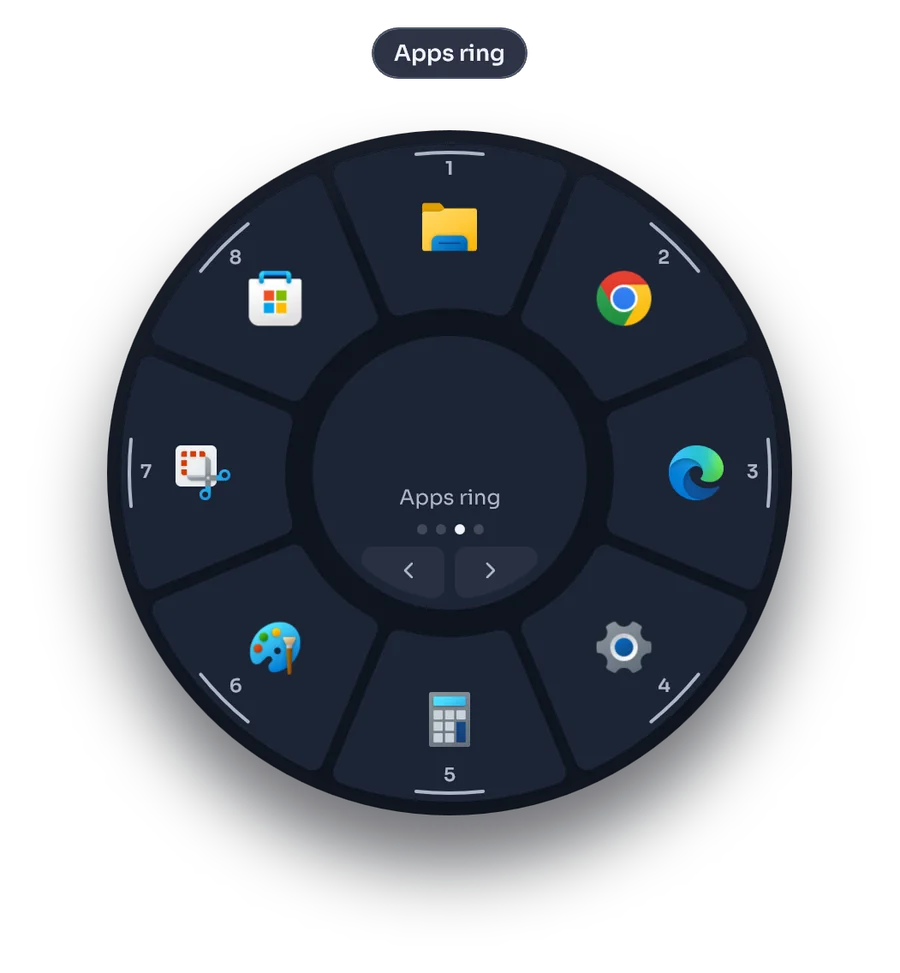
The first time, OceanBreeze puts your eight most used apps on the ring, based on the launch counts Windows already keeps and your taskbar pins. It reads these on your PC only, and after that it never moves your apps around. Keep moving past an app, beyond the ring's edge, for **New window** or **Open file location**.
To arrange it yourself, open Settings > Rings > Apps ring: drag an app from the list onto a slot, drag a slot off the ring to empty it, or choose **Fill with my most used apps**. Drag the Apps ring tab to the front of the ring order, and it's the ring that opens when nothing is selected.
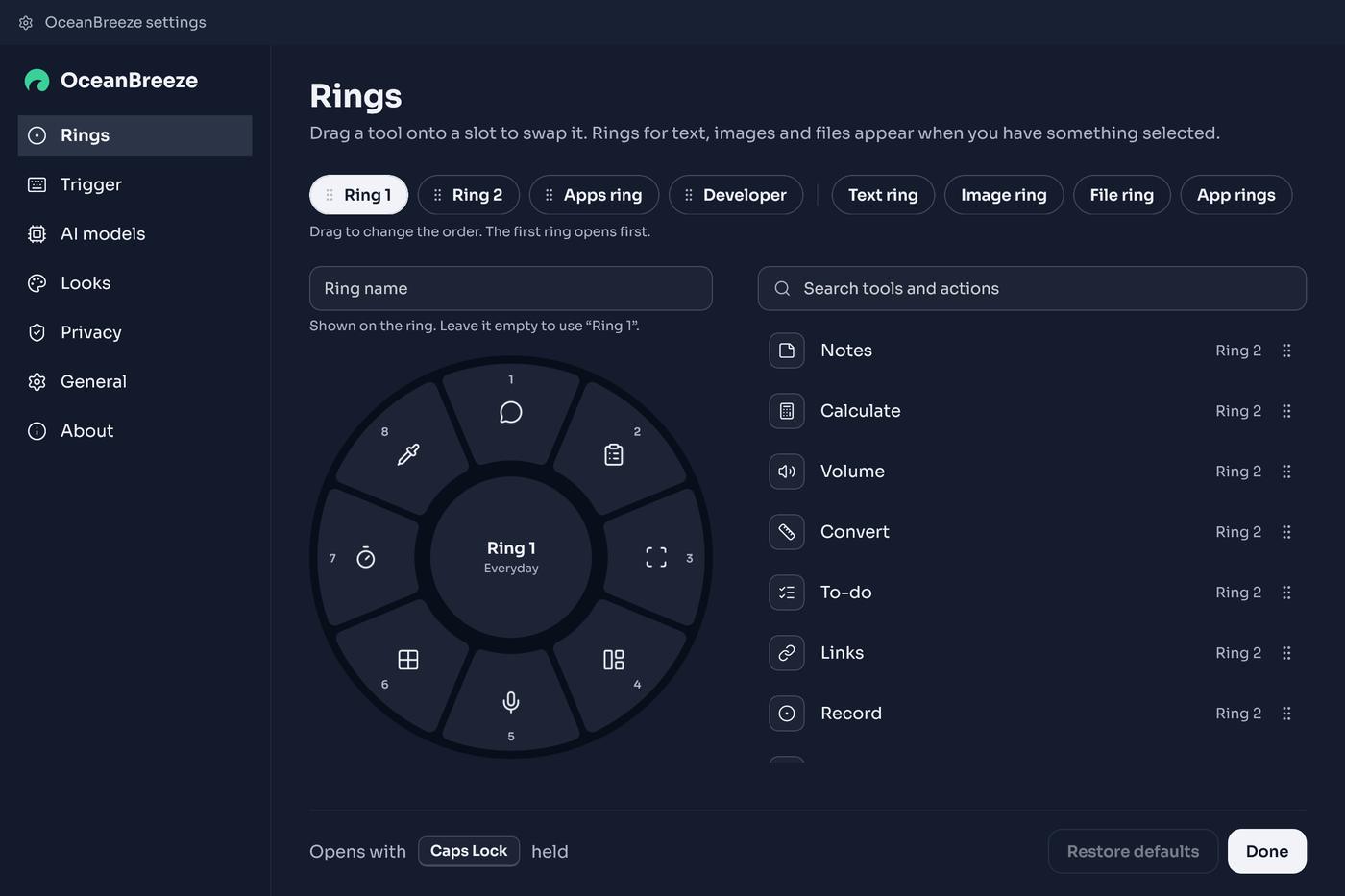
The ring holds eight apps on purpose. For everything else, keep a search launcher. [What a radial menu is](https://oceanbreeze.io/blog/what-is-a-radial-menu/) explains how ring menus work in general, and [the best radial menu apps for Windows 11](https://oceanbreeze.io/blog/best-radial-menu-apps-windows-11/) compares other ring apps.
## Typing-first or pointing-first
Typing-first suits people who use many apps, live on the keyboard, or want one box for files, commands and calculations too. Pointing-first suits people who spend the day with a hand on the mouse or a pen and open the same few apps over and over.
| | Typing-first (Start search, Command Palette, Flow Launcher, Raycast) | Pointing-first (taskbar clicks, OceanBreeze Apps ring) |
| --- | --- | --- |
| How you pick | Type part of the name | Click or flick toward a fixed position |
| Number of apps | Every installed app | A handful in fixed places; eight on the ring |
| Does more than launch | Files, commands, web search, calculator, extensions | The ring has other tools; the taskbar shows running apps |
| Hands | Both on the keyboard | One on the mouse, one on Caps Lock |
| Learning | Remember names and prefixes | Remember directions; it becomes a habit |
| Best for | Developers, writers, people with many apps | Designers, editors, people who switch between a few apps all day |
Most people end up with both: a ring or taskbar numbers for the daily handful, and a search box for the rest. The same split works for windows; see [window snapping on Windows 11](https://oceanbreeze.io/blog/snap-windows-keyboard-shortcuts/).
OceanBreeze is $1.99 once on itch.io, for Windows 11: https://mythicbrain.itch.io/oceanbreeze
OceanBreeze uses Caps Lock as its trigger. If you'd rather keep that key, [remapping Caps Lock on Windows 11](https://oceanbreeze.io/blog/remap-caps-lock-windows-11/) explains the options, and OceanBreeze can use another key or a mouse button instead.
## Common questions
### How do I change the Command Palette shortcut?
Turn Command Palette on from the PowerToys settings Home page, then change its activation shortcut in Command Palette's own settings.
### How do I open another window of a taskbar app with the keyboard?
Press Win + Shift + the app's taskbar number to start a new instance. Win + Ctrl + number switches to that app's last active window instead.
### Is Flow Launcher free?
Yes. Flow Launcher is free and open source, runs on Windows 10 and later, and installs with winget install "Flow Launcher", Scoop, Chocolatey or an installer from its GitHub releases.
### Is Raycast available for Windows?
Yes, for Windows 10 and later, from the Microsoft Store or with winget install raycast. It's free to download and use, with paid Pro and Teams plans.
### Which launcher is fastest?
For an app you open many times a day, a fixed position is fastest: a taskbar slot with Win + number, or a slot on a ring. For an app you open once a month, typing its name in a search launcher is faster than finding it.
## Sources
- [Keyboard shortcuts in Windows (Microsoft Support)](https://support.microsoft.com/en-us/windows/keyboard-shortcuts-in-windows-dcc61a57-8ff0-cffe-9796-cb9706c75eec)
- [Customize the Windows Start menu (Microsoft Support)](https://support.microsoft.com/en-us/windows/experience/personalization/customize-the-windows-start-menu)
- [Customize the taskbar in Windows (Microsoft Support)](https://support.microsoft.com/en-US/Windows/Experience/Personalization/customize-the-taskbar-in-windows)
- [PowerToys Command Palette (Microsoft Learn)](https://learn.microsoft.com/en-us/windows/powertoys/command-palette/overview)
- [PowerToys Run (Microsoft Learn)](https://learn.microsoft.com/en-us/windows/powertoys/run)
- [Flow Launcher](https://www.flowlauncher.com/)
- [Raycast for Windows](https://www.raycast.com/windows)