# How to use AI on selected text in any Windows app
> Compare ways to rewrite, summarize or translate selected text on Windows: chatbots, Copilot, Click to Do, PowerToys Advanced Paste and select-then-act tools.
Published 2026-11-14 by Mythic Brain. Page: https://oceanbreeze.io/blog/ai-on-selected-text-windows/
## Short answer
The simplest way is to copy the text, paste it into a chatbot such as Copilot, and copy the answer back. To act on a selection without leaving the app, use Click to Do (Win + Q) on a Copilot+ PC, PowerToys Advanced Paste with your own AI provider, or a select-then-act tool such as OceanBreeze's Text ring, which can rewrite or translate the selection in place, or summarize it in a panel.
## Key points
- Copying into a chatbot works everywhere but takes the most steps.
- Click to Do's Summarize and Rewrite run on the device. They need a Copilot+ PC, English and a signed-in account.
- PowerToys Advanced Paste is free. Paste with AI uses an online provider you pay, or a local model.
- Browser extensions only see web pages in that browser.
- Select-then-act tools like OceanBreeze work in any app and can paste the result over your selection.
## How the options compare
There are six practical options. They differ in how many steps they take, where your text goes, what they cost and what hardware they need.
| Option | Works in any app | Where the text goes | Cost | Hardware |
| --- | --- | --- | --- | --- |
| Copy and paste into a chatbot | Yes, by hand | The chatbot's service | Depends on the service | Any PC |
| Copilot app on Windows | Yes, by pasting or sharing a screenshot | Microsoft's Copilot service | Free Copilot Chat; needs a Microsoft account to sign in | Any Windows 11 PC |
| Click to Do | Yes, on text that's on screen | Summarize and Rewrite stay on the PC; some actions open Copilot, Word or the web | Included with Windows; sign-in required | Copilot+ PC only |
| PowerToys Advanced Paste | Yes, on what you copied | The AI provider you set up, or a local model | PowerToys is free; online providers bill for usage | Any PC; Phi Silica option needs a Copilot+ PC |
| Browser extensions | No, only web pages in that browser | The extension's service | Varies | Any PC |
| Select-then-act tool (OceanBreeze) | Yes, on your selection | The AI provider you pick, or a model on your PC | $1.99 once, plus your provider's usage, or free with a local model | Any Windows 11 PC |
## Copy and paste into a chatbot
This needs nothing installed and works with any app and any chatbot.
1. Select the text and press Ctrl + C.
2. Open the chatbot and paste it with your request, for example "Make this more formal".
3. Copy the answer and paste it over your original text.
The downside is the round trip: four context switches for one sentence. If you do this many times a day, the other options save most of those steps. [Clipboard history](https://oceanbreeze.io/blog/clipboard-history-windows-11/) helps you keep track of both versions.
## Copilot on Windows
Open Copilot with Win + C, or the Copilot key on keyboards that have one, then paste your text or share a screenshot. Microsoft's support page also describes Copilot Vision, which can see browser windows or apps you have open, and a screenshot option to capture and share all or part of your screen.
The app needs a Microsoft account to sign in, and Microsoft describes a free Copilot Chat. It is a chat app in a separate window, so you copy Copilot's answer back yourself.
## Click to Do
This Windows feature acts on whatever is on your screen, and it needs a Copilot+ PC or an eligible Cloud PC. Microsoft lists the requirements as an NPU of 40 TOPS, 16 GB of RAM, 8 logical processors and 256 GB of storage.
Press Win + Q, or hold Win and click, then select text on screen. The intelligent text actions are:
- Summarize, Create a bulleted list, Rewrite (Casual), Rewrite (Formal) and Rewrite (Refine). These use the Phi Silica small language model on the PC's NPU, so the text isn't sent anywhere.
- Draft with Copilot in Word, which sends the selected text to Copilot in Word.
- Practice in Reading Coach and Read with Immersive Reader.
They need English as your default language, at least 10 selected words, and sign-in with a Microsoft account or Microsoft Entra account. Some actions, such as Ask Copilot and Draft with Copilot in Word, aren't available in the European Economic Area, and several text actions aren't available in China.
## PowerToys Advanced Paste
Press Win + Shift + V to open the Advanced Paste window, type what you want done to the clipboard text, and it pastes the result where your cursor is. It is part of Microsoft PowerToys, which is free.
Paste with AI is off by default. Turn it on in PowerToys Settings and add a model provider:
- Online: OpenAI, Azure OpenAI, Mistral, Google or Azure AI Inference. You need an API key and might pay for usage. If you see "API key quota exceeded", your account needs credits.
- Local: Foundry Local, Ollama, or Phi Silica on supported Copilot+ PCs.
It has a built-in Fix spelling and grammar action, and you can save your own prompts as custom actions with shortcuts. A setting called **Use selected text for all hotkeys** makes Advanced Paste try to copy your current selection first, so you can skip Ctrl + C.
## Browser extensions
Extensions read pages through content scripts, which Chrome's documentation describes as files that "run in the context of web pages." That makes them handy in webmail and online editors, and useless in a desktop app like Word, Outlook or Slack's desktop client.
## Select-then-act tools
You select text, open a menu of AI actions right where you are, and the result goes back into the app without a chat window or any copying.
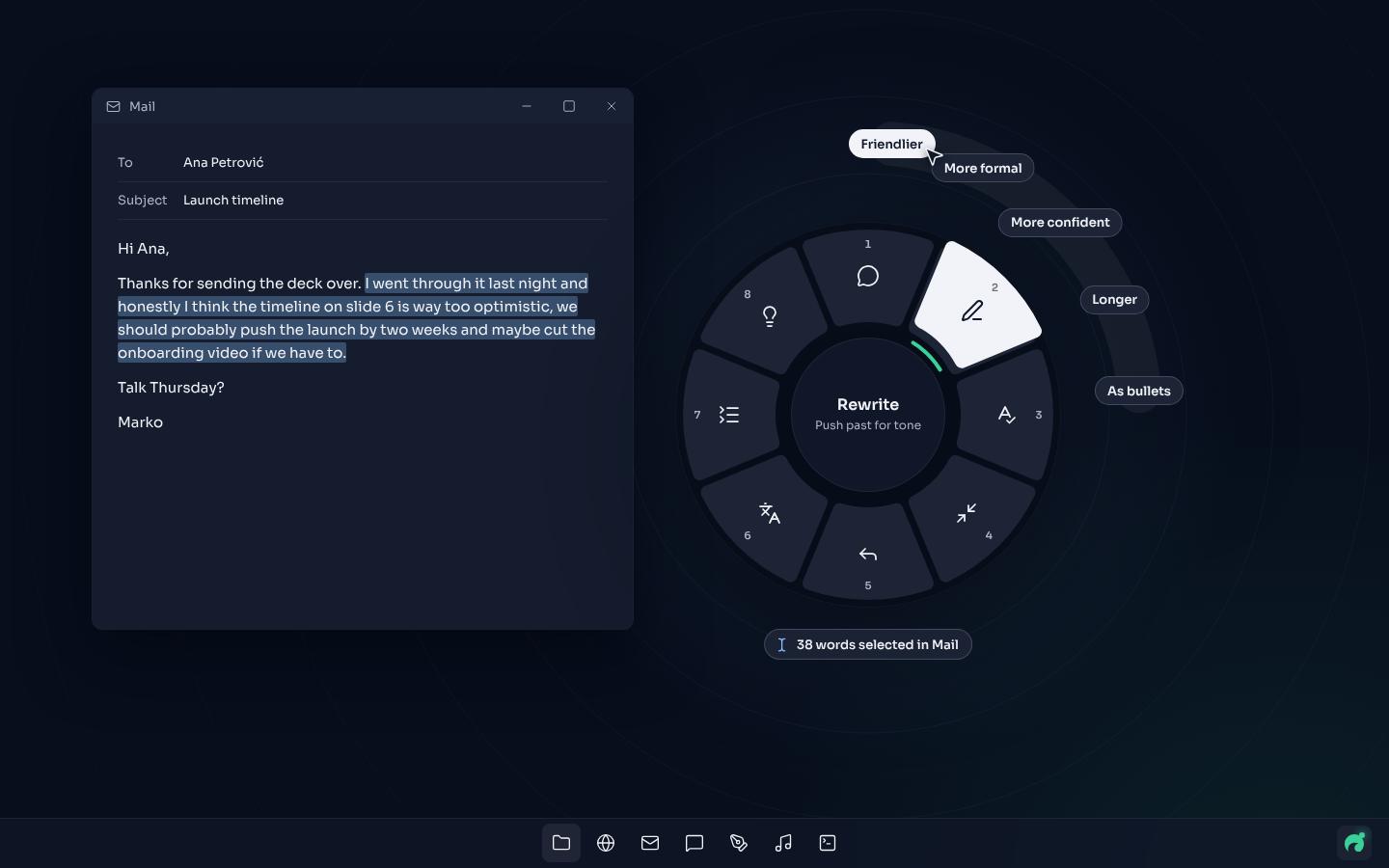
OceanBreeze is one example. Select text in any app, hold Caps Lock, and a ring of eight AI actions opens around your pointer:
1. Ask about it
2. Rewrite (push past it to pick a tone)
3. Fix spelling
4. Shorten
5. Draft a reply
6. Translate (push past it to pick a language)
7. Summarize
8. Explain
Flick toward an action and let go. Actions that change text, like Rewrite and Fix spelling, open a panel that marks what changed. Press Enter to replace your selection or Esc to keep the original.
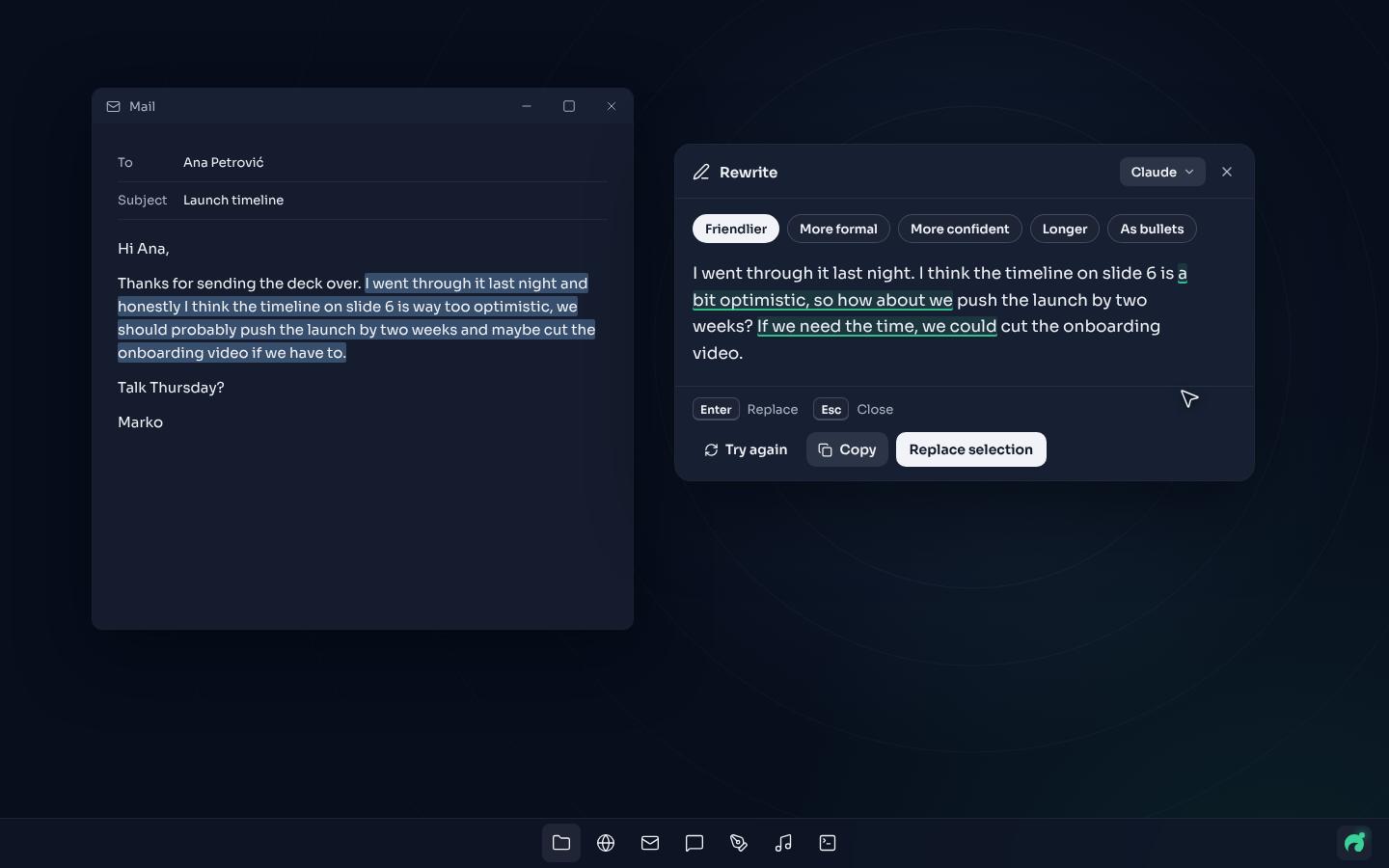
Your text goes only to the provider you pick for that tool: Claude, GPT, Gemini or Mistral with your own API key, or a free model on your PC through Foundry Local or Ollama, in which case nothing leaves your PC. [How to run AI locally on Windows 11](https://oceanbreeze.io/blog/run-ai-locally-windows-11/) walks through setting one up. Two limits: the ring can't open over apps running as administrator, and OceanBreeze runs on Windows 11 only.
OceanBreeze is $1.99 once on itch.io, for Windows 11: https://mythicbrain.itch.io/oceanbreeze
## Which one to pick
For occasional use on any PC, a chatbot or the Copilot app is enough. On a Copilot+ PC with English text, try Click to Do first: Summarize and Rewrite run on the device at no extra cost. If you already use PowerToys, turn on Paste with AI and connect a provider or a local model. If you only need it in the browser, an extension will do.
A select-then-act tool like OceanBreeze suits text you change many times a day, in any app, with the result pasted back. [What a radial menu is](https://oceanbreeze.io/blog/what-is-a-radial-menu/) explains how the ring itself works.
## Common questions
### Do I need a Copilot+ PC to use AI on selected text?
No. Only Click to Do's intelligent text actions need a Copilot+ PC. Copying into a chatbot, the Copilot app, PowerToys Advanced Paste and tools like OceanBreeze work on other Windows PCs.
### What is the Click to Do shortcut?
Press Windows key + Q, or hold the Windows key and click. On a touch screen, swipe right. You can also search for Click to Do in Windows Search.
### Why don't I see Summarize or Rewrite in Click to Do?
These actions need a Copilot+ PC, English as your default language, at least 10 selected words, and sign-in with a Microsoft account or Microsoft Entra account. Some actions aren't available in the EEA or China.
### Does PowerToys Advanced Paste cost money?
PowerToys is free. Paste with AI is off by default. An online provider such as OpenAI needs an API key and credits, and a local provider such as Ollama or Foundry Local costs nothing per use.
### Can I keep the text on my PC?
Yes. Click to Do's Summarize and Rewrite run on the device. PowerToys Advanced Paste and OceanBreeze can both use a model running on your own PC through Ollama or Foundry Local.
## Sources
- [Click to Do: do more with what's on your screen (Microsoft Support)](https://support.microsoft.com/en-US/Windows/Ai/Ai-Features/click-to-do-do-more-with-what-s-on-your-screen)
- [Welcome to Copilot on Windows (Microsoft Support)](https://support.microsoft.com/windows/welcome-to-copilot-on-windows-675708af-8c16-4675-afeb-85a5a476ccb0)
- [Get started with Microsoft Copilot (Microsoft Support)](https://support.microsoft.com/microsoft-copilot/getting-started-with-microsoft-copilot)
- [Advanced Paste in PowerToys (Microsoft Learn)](https://learn.microsoft.com/en-us/windows/powertoys/advanced-paste)
- [Content scripts (Chrome for Developers)](https://developer.chrome.com/docs/extensions/develop/concepts/content-scripts)